

Today’s post is by Saya Hillman of Mac & Cheese Productions.
Do you struggle to stay on top of all the things that come with being an adult? Do you experience anxiety, overwhelm, frustration, paralysis, or feelings of failure related to managing life?
If you’re human, yes, yes you do.
Adulting is A. LOT. Mundane. Expansive. Never-ending.
Unfortunately, I don’t have pixie dust to sprinkle to disappear taxes, driver’s license renewals, and grout cleaning. But I am a Type A nerd whose first conversation with her now husband centered on their mutual love of spreadsheets and whose jam is to make our collective lives easier.
As someone who enjoys trying out and combining platforms and services until the Goldilocks Effect, where they fit me just right, if I were to create a “Top Ten Tools I Can’t Live Without” list, Todoist would be listed. Top Five, even. Maybeeeee Top Three?!
Why I chose Todoist
I’ve been using Todoist as my to-do list go-to for 10+ years and one of my life’s goals is to get everyone to at least try it. Perhaps a bit dramatic to use “life-changing” when chatting productivity tools but Todoist was life-changing for me.
I was an analog girlie. My favorite time of year? “Back to school”—even as a 46 year old who hasn’t been in school since 2000—when you’re encouraged to stock up on new notebooks, pens, and any other supply you feel is going to help you live your best life. Paper calendars and lists fit my crafty, tangible vibe. I could watch someone bullet journal all day long. But over the years, wanting to have less stuff, to always have access to my stuff, and to lessen the amount of time, energy, and money spent on stuff, I went on a journey from 100% analog to 99% digital.
My adulting tool parameters:
- As few places as possible to manage events and tasks
- Make the places as enjoyable as possible
- Ubiquitous, simple integration with other people and apps
- Easy management of recurring items and long-term items
- Easy “on the go” use
- Clean, fresh, minimalist esthetic
I sampled various apps before crowning Todoist. It’s now where I keep the majority of my personal and professional tasks; daily, weekly, monthly, yearly, wheneverly.
I used the free version for years and have been on the Pro Plan since 2018 (I legacy-pay $29 annually; the current annual fee is $48).
Examples of my Todoist projects
Potpourri
- Financial: tasks include “run credit report”; “start taxes”; “cancel credit card/subscription”; “make sure enough money is in bank account for ______”
- To Consume: e.g. TV shows, books, articles
- Dates: to remember and celebrate e.g. birthdays, anniversaries, business birthday
Personal
- Housing: sub-projects include maintenance, moving, and cleaning
- Health: tasks include making appointments and taking medications
- Travel: sub-projects include before a trip, after a trip, to pack, and activity ideas
- Mom: created when her health deteriorated and I had to start caregiving, and continued through her death; there’s nothing like death of a loved one to make you appreciate a well-managed to-do list
- To Use/Redeem: e.g. credits, gift cards, promo codes, passes
- To Do During Downtime/Unexpected Free Time: e.g. edit photos; audit phone apps and browser bookmarks; file unfiled files; digitize analog notes
Professional
- To Apply/Submit: e.g. grants, fellowships, contests, residencies, conferences
- Newsletter: sub-projects include job openings, quotes, share ASAP, share whenever, ads, topics
- Offerings: sub-projects are the various ways I make money, e.g. speaking, facilitation, consulting, products
- Website
- Marketing
I primarily use this Today view, where I can see overdue tasks and today’s tasks. I try not to have more than 10ish overdue tasks—they either need to get done, rescheduled, or let go. I like to peek at Upcoming as well to get a feel for my next week and month.

Todoist features I love
Quick Add
Quick Add is a fast way to add a task, complete with customizations. Click Add task or press the keyboard shortcut Q, and type out the task. Then add applicable details like due date, priority level, and project.
Browser Extension

A browser extension is the equivalent of renovating your kitchen and choosing a few upgrades to make the kitchen better fit how you live. E.g. a pull-out pantry, a lazy susan, and drawers. You don’t need the upgrades, but oh my, do they sweeten every day*. The upgrades are your extensions.
*Can you guess what’s overtaken my life the past few months? 😂
The Todoist extension allows me to add to my to-do list without me leaving whatever I’m doing. I use it a gillion times a day.
Studies show that every time you leave A to do B, even if B is “quick”—checking email, Instagram, a notification—your mind requires twenty-three minutes of refocus time to get back on track upon return to A. Twenty-three minutes! Add up all the “quick” actions you make throughout the day, you’ll discover why you have trouble focusing and why you’re not making desired progress on XYZ.
The Todoist extension allows you to:
- Complete tasks from the browser
- Add tasks while you’re in deep-focus mode, remaining in whatever you’re working on
- Add tasks while you’re surfing the web
- Add websites as hyperlinked tasks. You can also do this by right-clicking your mouse and selecting Add to Todoist.
- Add text as tasks: Select and right-click text you want to keep—a title, a phrase, a paragraph—and the text is saved as a hyperlinked task
Recurring Tasks
One of my favorite features—being able to stay on top of recurring tasks that happen with a chunk of time between occurrences. E.g. changing dishwasher filters, renewing trademarks, HVAC maintenance, and deciding if I want to renew a subscription.
Putting in the effort to add repeat offenders sucks in the moment but Future You will be so appreciative.
When I buy a new thing that comes with a manual and requires action, I sit down with the manual and add all the applicable to-do items to Todoist, including frequency. E.g., humidifier and vacuum maintenance. This is a great activity to do while watching trash TV.
Due Dates and Deadlines
“Out of sight, out of mind” isn’t tattooed on my bicep but it could be.
I’m a fangirl of saving brain space for fun stuff, like creativity, nostalgia, memories, and excited anticipation, and not using that precious real estate for the government, doctor, or DMV. Which is why I love Todoist due dates—they provide me confidence that when I dump a task onto my list, I can immediately forget about it until I need to remember it.
Additionally, there are often occasions when I want to start working on something before it actually needs to be done, like taxes. I love that I can give myself a due date ahead of when a task must be done date, a deadline, and see both as I work on the thing, reminding me how much time I have left.
I also like being able to strategically not assign a due date or deadline.
I do this when there’s a task I don’t want to lose track of but that I only want to surface when I decide I’m ready to act upon the task. For example, my Brainstorm Project is ideas I want to explore at some point. I wasn’t ready to dive into digital product creation five years ago when wheels began turning on the subject. Now that I’m ready, I have a place to pull from to manifest my dreams.
Smart & Natural Language | Shortcuts
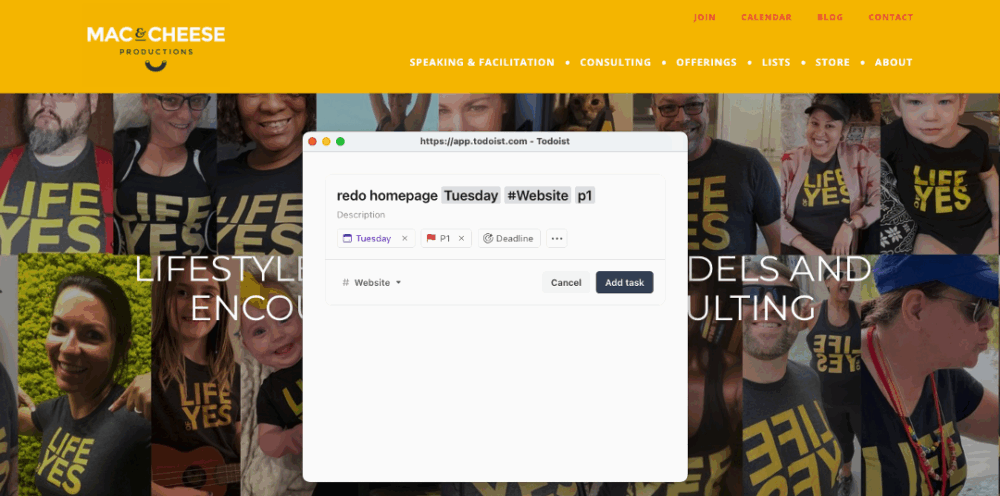
When you type certain language into a task, it auto-expands, classifies, and assigns.
The task shortcuts I use the most:
- Type p1, p2, p3, or p4 to set a priority level
- Type “#” to assign a task to a specific project
- Type “{date}” to add a deadline
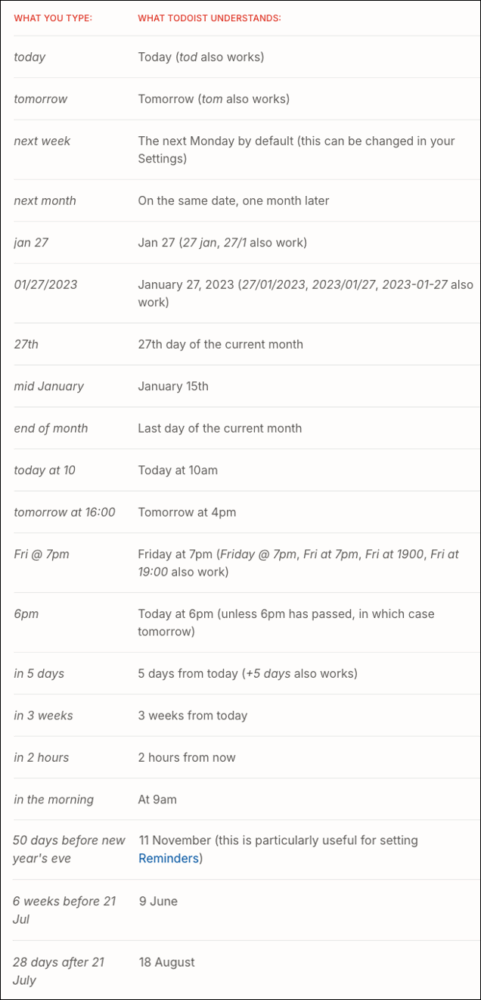
- Date and time—
- Type “Tuesday” in a task, it’ll give the upcoming Tuesday as the due date
- Type “every Tuesday”, the task will recur every Tuesday
- Type “every 3rd Tuesday”, the task will recur every 3rd Tuesday
- Type “every 3rd Tuesday starting Aug 29 ending in 6 months”, you get it…
💡 Tip: make sure smart date recognition is on.
Other date and time examples:
The Mobile App
Being able to easily add things that pop into my head while I’m on a walk or lying in bed is of high importance to me, and the mobile app is chef’s kiss for that. This is when that smart language and shortcuts come in handy.
Priority Labels
I love prioritizing tasks for my newsletter.
When I have something I want to include in my newsletter, I add a priority label so I know if it’s time sensitive, e.g. a job opening, and needs to go in the next edition, or if I just want to include it in some edition, regardless of when. Then when I’m ready to create the next edition, I sort my newsletter project by priority and see what needs to be included this go round.
I also love to prioritize no-date, someday tasks, like my business brainstorms, home projects, and to consumes:
- I’m more interested in adding passive income streams than in revamping my website
- Figuring out a better under the kitchen sink organization system is more important to me than wallpapering the bedroom
- Reading a recommended book on finishing my memoir is more pressing than reading a recommended memoir
I want each of these tasks on my radar but I also don’t want to become overwhelmed or paralyzed with the amount of to-do tasks. Assigning and sorting by priority keeps me moving forward.
Assigning Tasks To Others
Though I mostly use Todoist for and by myself, my husband and I also use it to collaborate, personally and professionally.
I love that we can add and assign tasks in a co-project, like facilitation, travel, or home, so we can both see who needs to do what. This has cut down on my reminders and his forgets, which has cut down on overall marriage friction. Who knew Todoist was a relationship-tool?! If I was getting married again, I’d add the Pro version to my registry. Not a joke. (We had an almost 100% bartered wedding that included a lot of non-traditional’ness, like a Honeypreneur Fund which helped us honeymoon in Hawaii and grow our businesses).
Learn more here:
Sub-Tasks
It’s uber-helpful that a task that has its own tasks can be easily broken down and tracked via sub-tasks. E.g. “prep for speaking gig” includes “update deck,” “pack remote,” “send invoice,” and “print notes” as separate tasks that I can update as I do them, and when they’re all done, can check off “prep for speaking gig.”
My sub-tasks have even been known to have sub-tasks. 😄
Sections
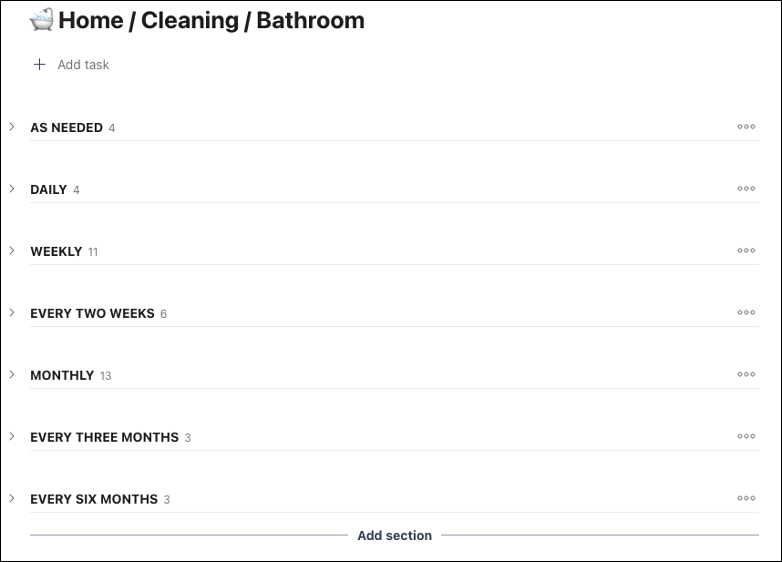
Another organizational feature I employ is the use of sections.
The above image is housed in the parent project, Personal, and then in sub-projects Home, Cleaning, and Bathroom. Once it gets to this level of nuance, instead of listing out all the tasks related to cleaning the bathroom on one list, I categorize them by frequency. It’s more visually pleasing to me and lessens overwhelm.
If you have a project that has phases, like writing a book, sections are a lovely way to construct your journey.
You can name sections whatever your wee heart pleases.
Sections can be moved, duplicated, deleted, and archived.
Create an Uncompletable Task
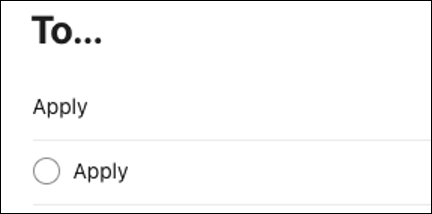
The first “Apply” above is an uncompletable task versus the second “Apply,” which is completable.
I use an uncompletable task when I want a task that functions as header or when I have a parent task with numerous sub-tasks and I want to ensure I don’t accidentally complete the parent task if there are still baby tasks to attend to.
To use this feature, click Add a Task and add an asterisk and a space before the task’s name, e.g. “* Spain Trip”.
You may be wondering, “How are these different from sections?” Gold Star question!
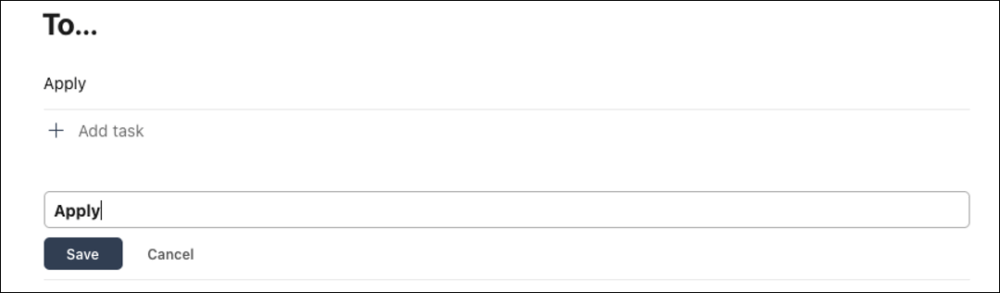
They’re essentially the same except you can’t add comments, files, date, time, or people assignments to sections. If you want those capabilities, go the uncompletable task route.
Here’s an example of “Apply” as an uncompletable task and as a section:
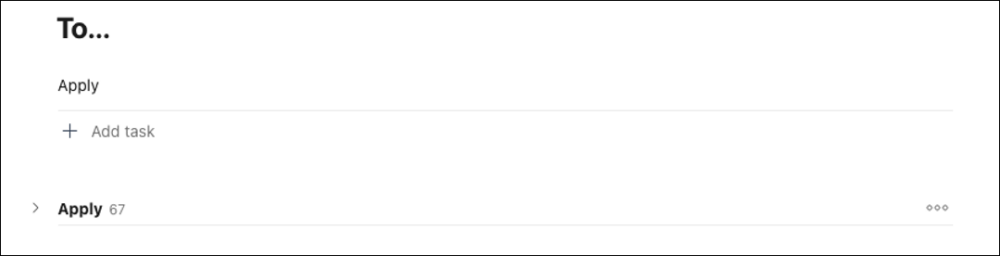
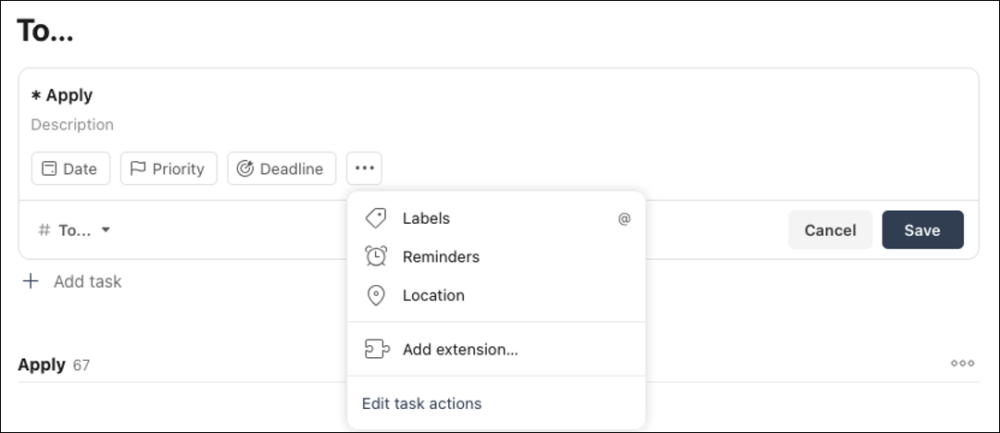
When you edit an uncompletable task, these are your options:
When you edit a section, your only option is to rename it:
Favorites
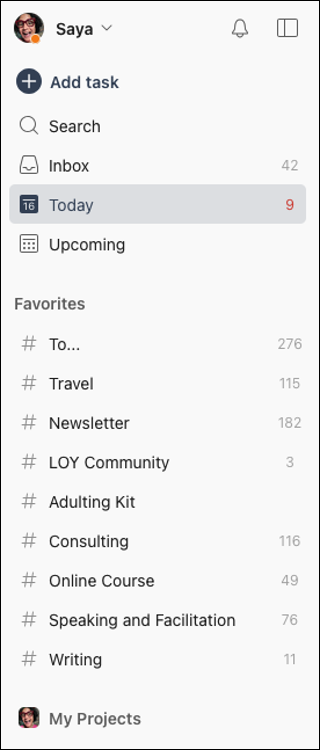
A goal I have in everything I do is to do the thing in as few steps as possible.
The Favorites feature gets me closer to that goal daily. It provides a shortcut to projects, labels, and filters I use the most or that for some other reason, I want to be as accessible as possible.
Depending on what I’m focusing on, the list changes frequently. As soon as a class I’m teaching is over or I return from a trip, I remove those from the spotlight.
Some entries are permanent.
Templates

I have oodles of projects that have oodles of tasks I’d rather not recreate each time. E.g. when I get a new consulting or speaking client or when I teach a class I’ve taught before.
So “Consulting Client” became a template that I duplicate every time I get a new client and “Storytelling Class” became a template I duplicate every time I offer the class.
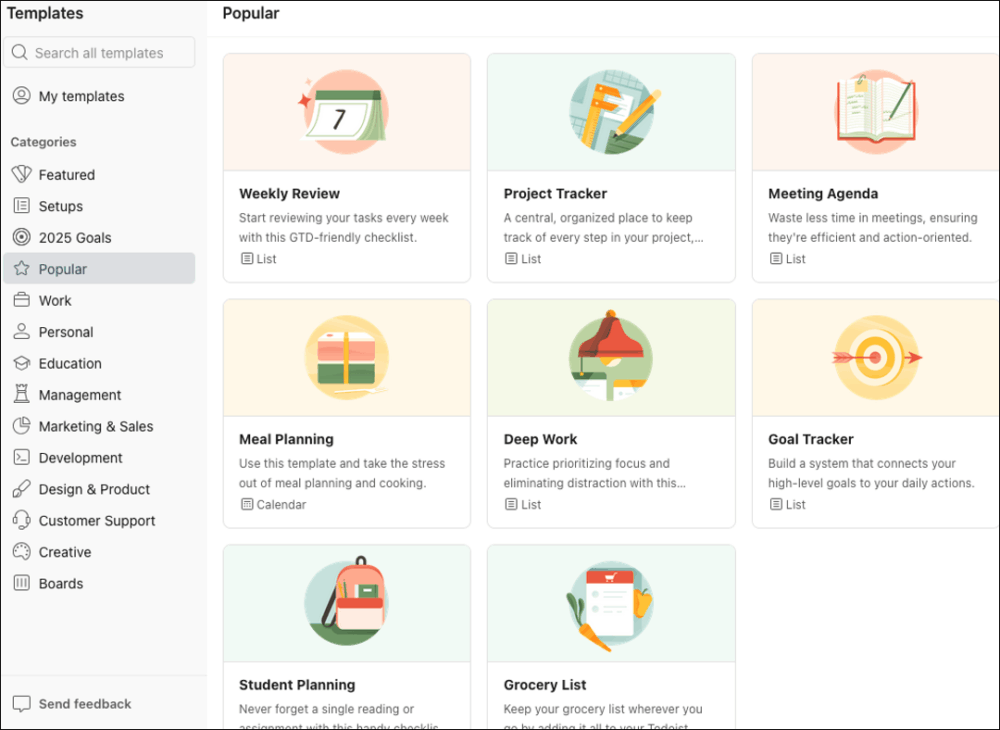
Beyond using your own templates in Todoist, you can also use other people’s templates. You can peep them simply for inspiration or actually import them into your Todoist.
Meal prep, goal tracking, employee onboarding, social media scheduling, book writing! The stimulus sources are vast and lightbulb-lighting.
💡 Tip: You can’t edit a template. If you want to make a change to a template, make the changes, create a new template out of the updated project, and give it a different name than the previous one. After recreation, delete the older one.
Exporting & Importing Projects

Many people don’t want to spend the time I do setting up projects, e.g., “how to run your home” or “how to be a speaker,” so they’ll hire me to help them set up their Todoist either via one-on-one consulting or on-demand products. Both avenues include me providing customer access to my projects/templates so they can easily import them into their own Todoist and then customize as desired. These are folks who prefer not having to start from scratch or re-inventing the wheel.
Had no clue my Type A-ness and love of minimalist organization and efficiency would turn into income streams!
You can see in the above image that these customer-facing projects are housed in Public. This helps me remember not to put anything tawdry or personal in them. 😄
Of course, project export and import can be used in non-monetized ways as well, such as simply gifting a loved one access to a project you feel would help them in a specific area.
💡 Tip: Completed tasks are not included when exporting to a CSV file, which is often how you share projects: “If you need these to be in the file, and you don’t need all task attributes, use the Export to Google Sheets extension. This CSV file excludes labels, deadlines, comments, attachments, and reminders, but it allows you to include your project’s completed tasks.”
Import or export a project as a CSV file in Todoist.
Karma Goals
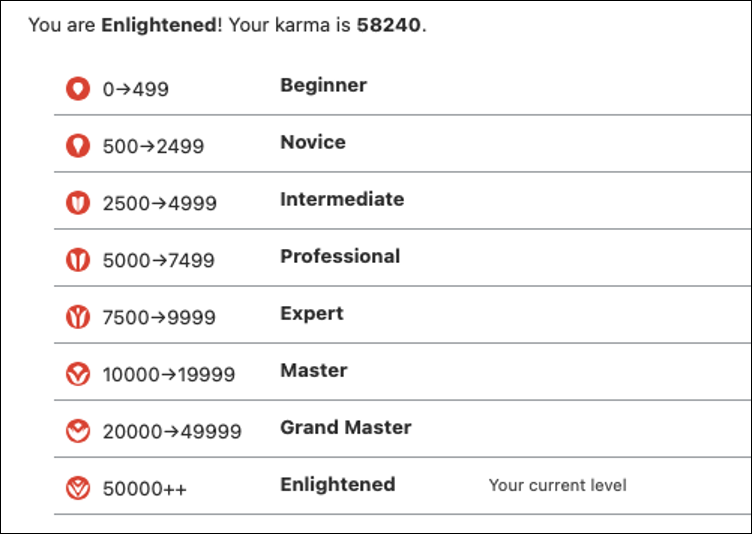
You know how Mom putting your 97/100 math quiz on the fridge gave you warm fuzzies and encouraged you to continue your star student’ness? Turns out, that tactic also works on 46 year olds.
When I complete my daily and weekly task completion goals, I get a congratulations pat on the back from Todoist via Todoist Karma. The end of year Karma Report recounts how many tasks I’ve done over the twelve months and tells me where I fall amongst other Todoist users.
If I was still single and on Tinder, I’d include this in my profile and 110% swipe right on any parallel profiles. If this type of Does not matter one iota! tally and ranking bewitches you as well, take a few minutes to set up your Karma.
The fact that I need you to know that the above image is not just some random screenshot pulled from the internet but my actual karma level encapsulates everything you need to know about me and how I tick.
Get started with Todoist
There are so many reasons to love Todoist, multitudes more than what I’ve penned. But I’ll stop here. Though I could go on. And on.
If piqued, a few get started suggestions:
- Start with the free plan
- Upgrade to paid once you’re certain it’s worth it and/or once you keep bumping into “Not available on your plan; upgrade here” messages [The five project limit was what pushed me to upgrade; now I can have up to 300 projects]
- Sign up for (and actually read) their newsletter
- Instead of spending forever in their wonderful help universe, go through Get Started, browse Set Ups to see how others have set up their Todoist, and browse Templates to see various use cases. Come back to Help when needed for a specific thing. This’ll help you do the thing rather than thinking about doing the thing.
- Instead of playing around with Todoist, actually use it for an actual use in your life—start with one personal project or one professional project.
- Customize Todoist to fit your day to day and workstyle. The right way to use it is the way that works for you.
- Use emojis (in tasks, sections, headers, etc.). They not only make to-do tasks more fun, they aid in visual organization and accessibility. 👏🏽 👏🏽 👏🏽
If you’re more of a visual person or if analog’s your jam, Todoist may not be a good fit. But if you see yourself in me and want someone knowledgeable and trustworthy to cut through the noise and tell you what to use, I encourage you to give Todoist a try—or even better, to give my referral-linked Todoist a try! Win-win, my most favoritest scenario.
I’m someone who both loves nostalgic Trapper Keeper, Franklin-Agenda-Chandler’s Notebook, hold something in my hand, physical planners AND take advantage of technology, minimalist digital planners. The Goldilocks journey to where I am today was filled with tests, experiments, free trials, installs, and uninstalls.
Todoist is here to stay.
My go-to saying when talking Todoist is “I don’t have to remember anything but I also don’t forget anything.”
I emit the aura that I remember when to import the street cleaning calendar into my calendar, renew my Global Entry, and descale my Keurig when in reality, Todoist remembers and communicates those tasks, so that I can remember what Real Housewife said what salacious slander, the address of my sixth-grade crush, and the lyrics to Young MC’s “Bust a Move.”
The important stuff.
Not rhetorical questions, I genuinely want to know from you:
- What’s on your “Top Tools I Can’t Live Without” list?
- If you’re not a Todoist user, what do you use for a to-do list?
- If you’re already a Todoist user, what features do you love?
- What “important stuff” fills your head?
Note from Jane: If you’d like to be notified of future Positive Adulting courses and products from Saya Hillman, sign up here.

Saya (Sigh-Uh) Hillman runs Mac & Cheese Productions, a lifestyle business that models and offers positive adulting and increases life fulfillment and ease through building connection: to others, to opportunities, and to self. A Chicago resident, Saya was one of Business Insider’s Top Twenty Brazen Young Professionals to Watch, has been featured in Forbes and The New York Times, and is a TEDx speaker and an in-progress, fingers-crossed memoirist.

I’ll certainly try Todoist. I like higharchical outlining. I began with Workflowy. Then Dynalist. Now RemNote. Hopefully Todoist will be my final stop.
Notion doesn’t have something like this? Apparently not. I think you use Notion but, even if they have this, Todoist is better.
Love that you’ll give it a try! Report back if ya do. 🤞🏽
I love Notion for so many things. To Do Lists is not one. I trieddddd so hard to make it work, to lessen the platforms I use. But in the end, Todoist was the winner by far.
Ummm Saya. Wow. I’ve known you a LONG time and this article just 100% convinced me that I need Todoist in my life yesterday! You are always so gifted at explaining specifically and simply how a new tech tool is useful. Thank you! (running to sign up for the free version).
Thank youuu for making me a Baby Influencer, Laura! 😘 I remember you in my “4 hours on a Saturday Time Management class” many moons ago. THAT is gold star worthy! ⭐
As usual, your ideas are priceless, Saya! The suggestion for a Use/Redeem list is genius. I have lost too many Southwest confirmation numbers turned credit codes to count. I love the idea of a dedicated list of just these things that I can find when I need them.
Ohhhhhh LG, you know I love to hear SPECIFICS! Yes yes yes that that’s what stuck out to you and that you think it’ll be useful in your life. Hope it works as magically for you as it has for me.
Thanks for reading and for the kind words 🧀 😘
Another vote for Todoist! I’ve also been using it 10+ years and it has revolutionized my life. There is something so freeing about being able to enter a task in Todoist rather than trying to carry all these things around in my brain😜. Plus, I use my time more efficiently…working on what I SHOULD be doing rather than just what I remember. I’ve tried SO many other methods, but Todoist is intuitive and works the best for me.
Diana, I could copy what you wrote word for word and share it as mine — ditto ditto ditto! Thanks for sharing and I love being in this club with ya. 😄
I feel this doodle I doodle applies…
What a great motivator to give it a try! I’ve had Todoist on my “to do list” for a longggggg time. Your examples are IT. It’s the health appointments, the filters, etc! I’m also seen as a “I don’t have to remember anything but I also don’t forget anything” person but I use a substandard method — calendar appointments. They work well TBH, but it sures looks like Todoist is better.
Will be anxiously awaiting to hear what you think of it Carol since we’re very similar in our Type A ways. I tried the calendar method and it was too cluttered and noisy for me. Can’t wait to see if you like TD!
This is glorious, thank you!! Not only as a quite tempting intro to Todoist; it’s a great look into organization on multiple planes, too.
Thanks for reading and for the kind words, Mary! Hope you find it as sexy as I do if you give it a try. 😄 Would love a report back!
Hi Saya! You’ve always been extraordinary. I’m so glad you contributed this article! My Todoist subscription JUST renewed. I’m bookmarking this page and coming back to clean it up and make it work for me! Thank you!!
What #LifeOfYes timing, Carolyn! Love that. Hope the refresh is a good one for ya. Thanks for the kind words. 🧀 😘